Why use an Alexa routine widget?
Voice is convenient when your hands are busy, but it is not always the fastest interface for repetitive smart-home actions. A widget makes sense for routines you trigger frequently: turning all lights off, opening a garage, starting bedtime or activating a scene from a wall-mounted tablet.
The important distinction is that Buttons for Alexa does not replace the Alexa routine editor. You continue to create and maintain your smart-home routine in Alexa. The Android widget becomes another way to trigger the command.
How to create the widget
Create the routine in Alexa
Open the official Alexa app and make sure the routine you want to use already works when you trigger it normally.
Add a routine in Buttons for Alexa
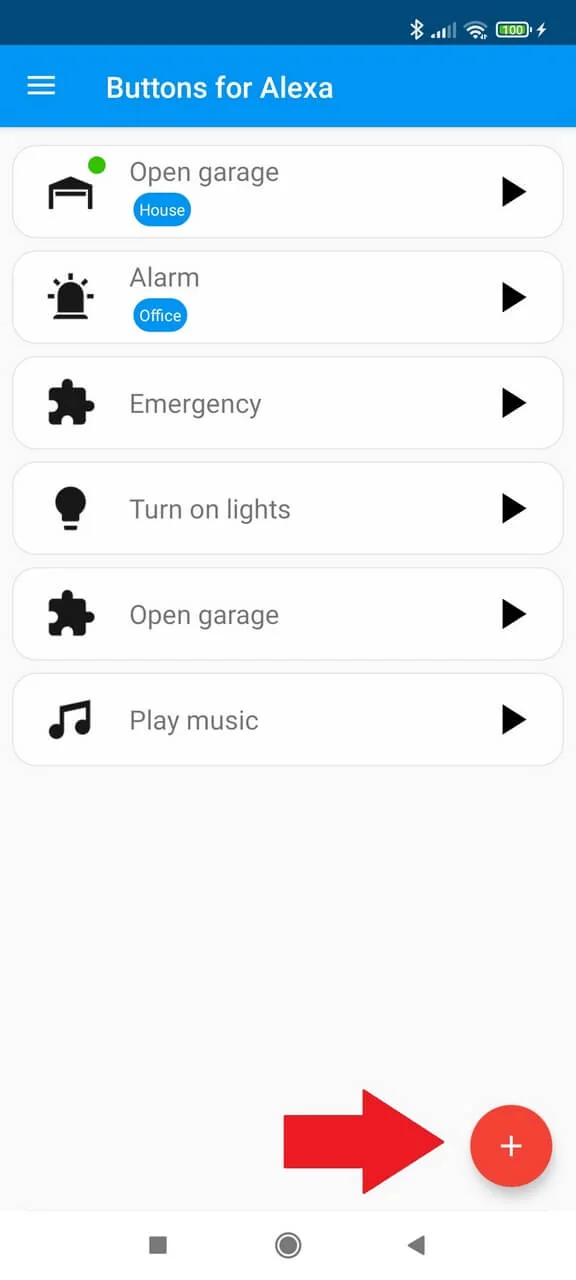
Open Buttons for Alexa, tap the add button and enter a short title that will make sense on your phone, such as “Garage” or “Bedtime”.
Record the command
Record the same command you normally say to Alexa to start that routine. The initial “Alexa” wake word can be omitted.
Add the widget
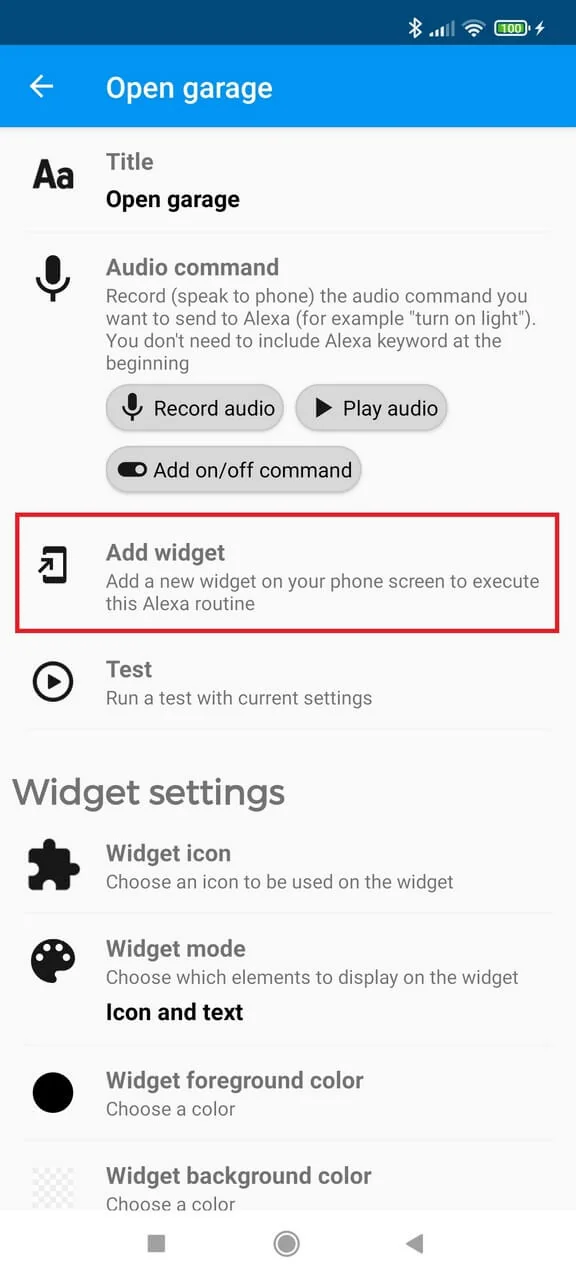
Use the Add widget action. If your launcher does not allow automatic placement, open the Android widget picker and add the Buttons for Alexa widget manually.
Test it from the home screen
Tap the new widget and verify that Alexa runs the expected routine. If the routine itself has device/output restrictions, review the routine configuration in Alexa.
Tip: design the home screen around actions, not apps
Use clear names and recognizable widget icons. A small set of actions such as “All lights off”, “Garage” and “Night” is usually faster to scan than a dense dashboard.
Can I use Alexa routine widgets on an Android tablet?
Yes. This is one of the most useful setups: an Android tablet can become a simple smart-home panel with the Alexa routines your household uses frequently. The exact widget layout depends on the tablet launcher and Android version.
Widget not responding?
Start with the simplest checks:
- Open Buttons for Alexa and verify the same saved routine works from the app.
- Use the app’s widget reset option if the widget was created before an app update or restore.
- Check whether your phone restricts background activity or auto-start for Buttons for Alexa.
- Try removing and adding the widget again.
- If no routine works, redo the Alexa login from the app settings or reinstall as a last-resort reconfiguration step.
For routine-specific issues, see the routine troubleshooting guide.
Frequently asked questions
Can Alexa routines have Android home-screen widgets?
Alexa does not need to provide the widget itself. Buttons for Alexa creates Android widgets that trigger commands for routines already configured in your Alexa account.
Do I need to recreate the Alexa routine?
No. Keep the original routine in the official Alexa app. In Buttons for Alexa, save the command you normally use to start it.
Can I customize the widget?
Yes. Buttons for Alexa provides widget customization options so common actions are easier to identify on the home screen.
Why can’t my launcher add the widget automatically?
Some Android launchers restrict automatic widget placement. In that case, add the Buttons for Alexa widget manually from your launcher’s widget picker.